Find a piano score you can bring into BetterMuse.
Start with MusicXML or MXL when you can. MIDI is a useful fallback. PDF keeps the printed page intact. Here is how to choose a format and find a score.
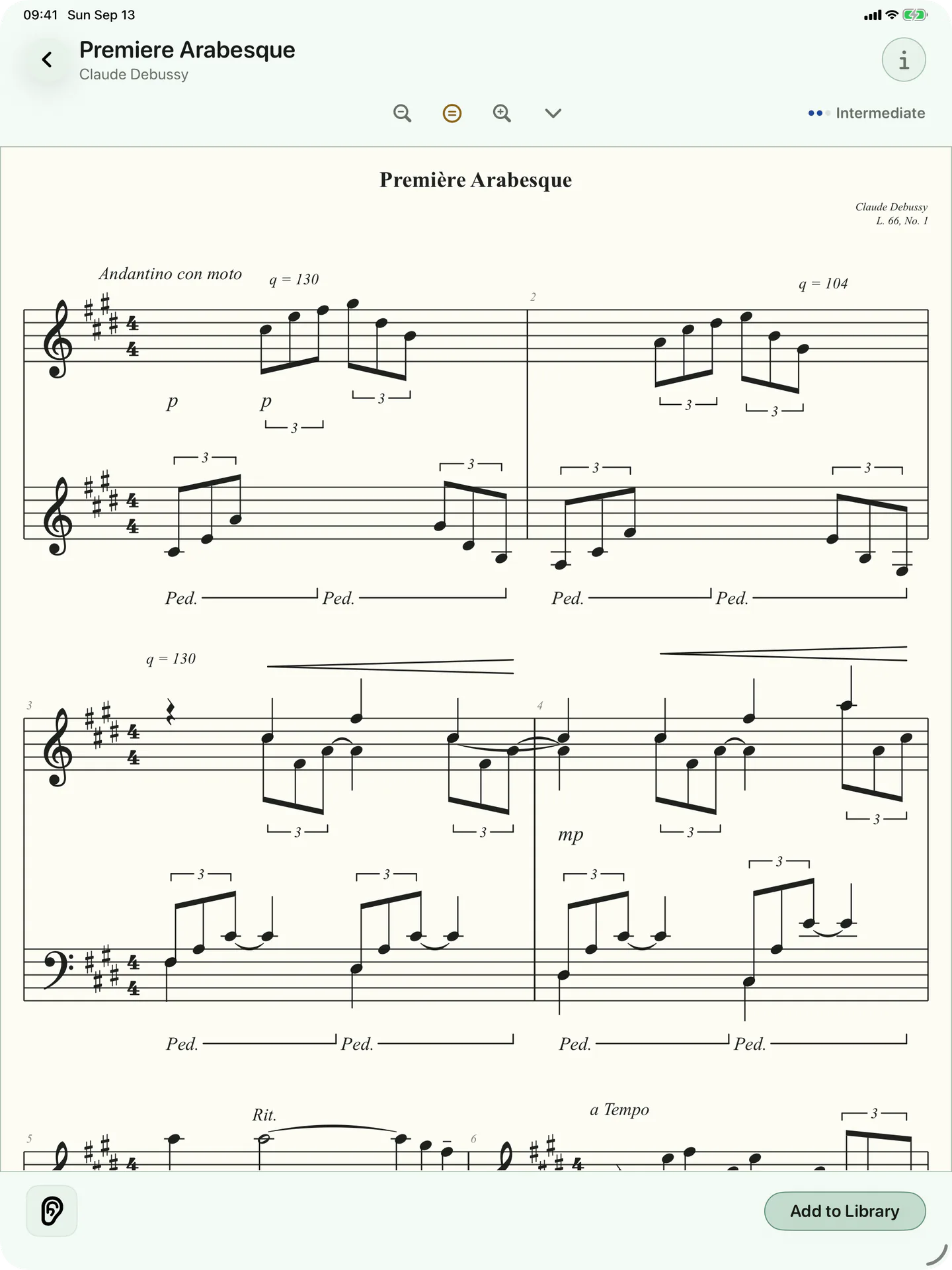
Choose the richest format you can find.
Start with MusicXML or MXL
MXL is compressed MusicXML. Both preserve structured notation.
- Engraved notation
- Score playback
- Measure loops
- Score markings
- Practice planning and history
- Supported note, rhythm, and touch grading
Use MIDI as a fallback
BetterMuse rebuilds notation from the musical events. The original page layout may change.
- Notation rebuilt from MIDI
- Score playback
- Measure loops
- Score markings
- Practice planning and history
- Supported note, rhythm, and touch grading
Use PDF for the printed page
PDF preserves the page as a document rather than structured notation.
- Original printed page
- Freehand markings
- Focused page regions
- Practice planning and history
- Score playback
- Note-level grading
Three useful places to start.
These services are independent of BetterMuse. We do not guarantee that content on these services can be used with BetterMuse, so check the details for the score you choose.
Mutopia Project
A strong first stop for openly licensed and public-domain editions. Piece pages commonly provide PDF, MIDI, and LilyPond source files, with the licence shown alongside the score.
Read Mutopia’s licence guideIMSLP
A large source of public-domain scores, especially PDF scans and editions. File pages show copyright notices for different countries and editions.
Read IMSLP’s public-domain guideMuseScore Studio
Open your score in the desktop app, then export MusicXML, MXL, MIDI, or PDF for BetterMuse. MusicXML or MXL will usually preserve the richest notation.
Read the official export guideOne useful distinction
Copyright can apply separately to a composition and to a particular edition or arrangement. That is why an old piece may be public domain while a new engraving or arrangement is not. Score pages usually show the information for each file.
Turn your MuseScore Studio score into a BetterMuse file.
- 1
Open the score
Use MuseScore Studio on your computer to open a score you wrote, purchased, or have permission to use.
- 2
Choose Export
In MuseScore Studio, select File, then Export. Choose MusicXML or MXL when you want the richest BetterMuse experience.
- 3
Move it to your device
Save the exported file somewhere available on your iPhone or iPad, such as iCloud Drive.
Follow the current steps in the MuseScore Studio export guide.
Bring the file into your library.
- 1. Open BetterMuse and choose Import Score.
- 2. Select the MusicXML, MXL, MIDI, or PDF file.
- 3. Keep it beside your catalogue scores, then add it to your practice plan.
Your first catalogue score or personal import is included. BetterMuse Pro enables unlimited additions.
On another device?
Open on your iPhone or iPad
Scan with your device’s camera, or search for BetterMuse in the App Store.
Currently available for iPhone and iPad.
Want BetterMuse on another platform?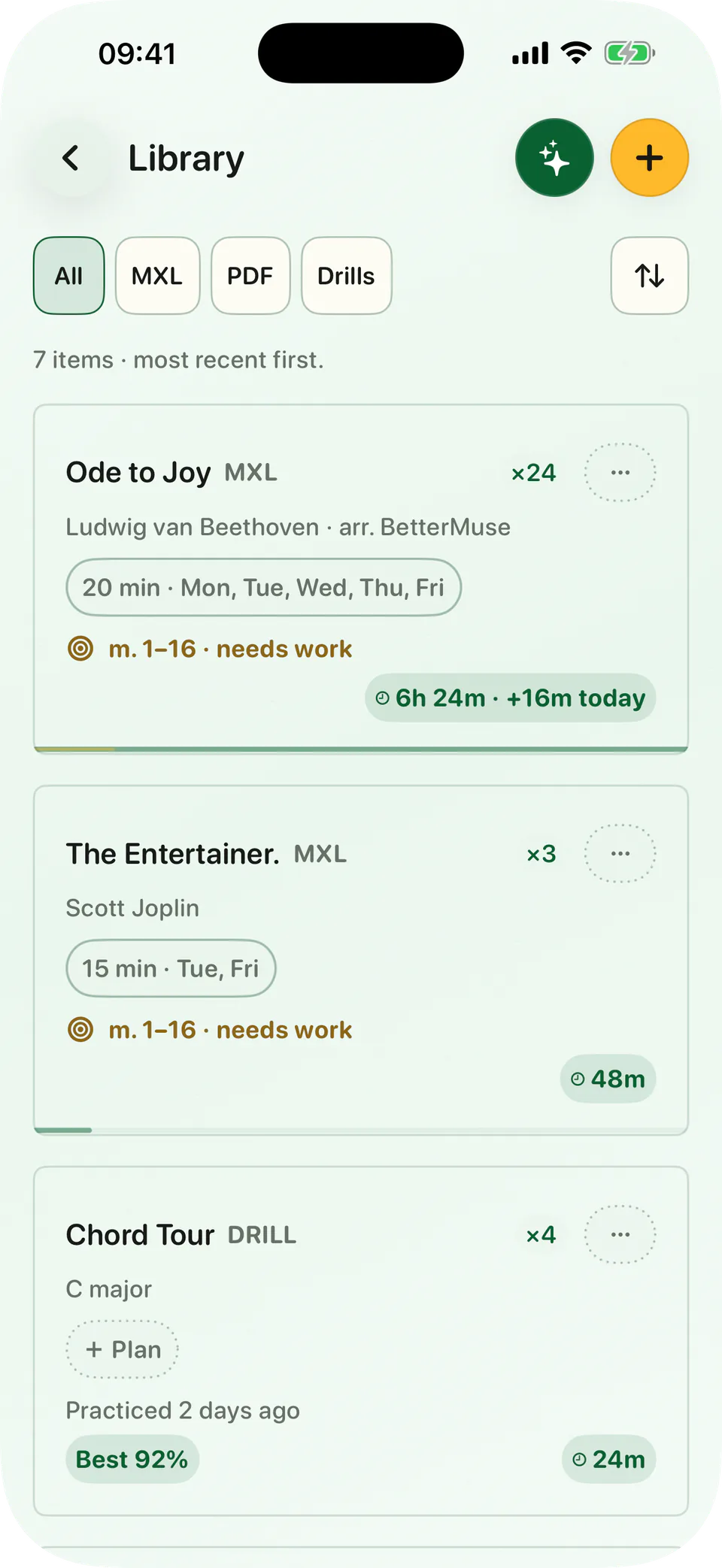
A few common questions
Which score format works best in BetterMuse?
MusicXML or compressed MusicXML (MXL) usually gives BetterMuse the richest notation. Supported structured scores can use notation-aware practice and grading with compatible input.
Can BetterMuse grade a PDF score?
No. A PDF contains pages rather than structured musical notes. BetterMuse supports PDF reading, markings, focused regions, time, and completion, but not note-level grading.
Is every old composition free to download and import?
Not always. Copyright can apply separately to a composition and to a particular edition or arrangement. Score pages usually show the status and licence for each file.
Can I export my own MuseScore Studio score?
Yes. MuseScore Studio can export MusicXML, compressed MusicXML, MIDI, and PDF files.

Bring the score. Build the practice around it.
On another device?
Open on your iPhone or iPad
Scan with your device’s camera, or search for BetterMuse in the App Store.
Currently available for iPhone and iPad.
Want BetterMuse on another platform?